
How to upload supporting evidence to self-recorded CPD activities
Entered a self-recorded CPD activity but still need to upload supporting evidence?
Follow this step-by-step guide to upload your supporting evidence to your self-recorded CPD activities.
Though we do our best to keep these instructions up to date, if you find something is not working as expected, please contact us.
- Navigate to https://www.cpdhome.org.au/

Log in to your CPD Tracker using your email and password.

- On the blue menu, hover over CPD Activities
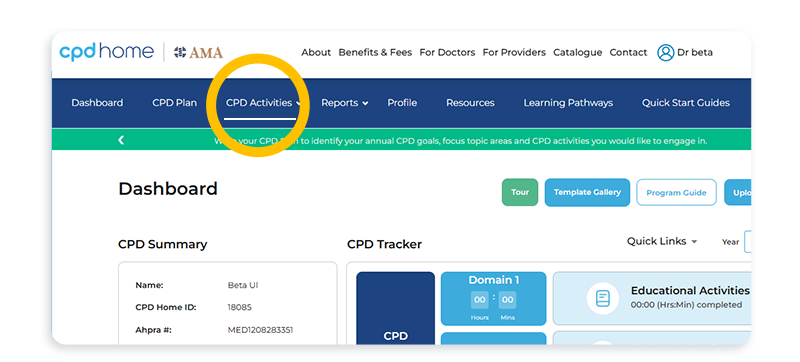
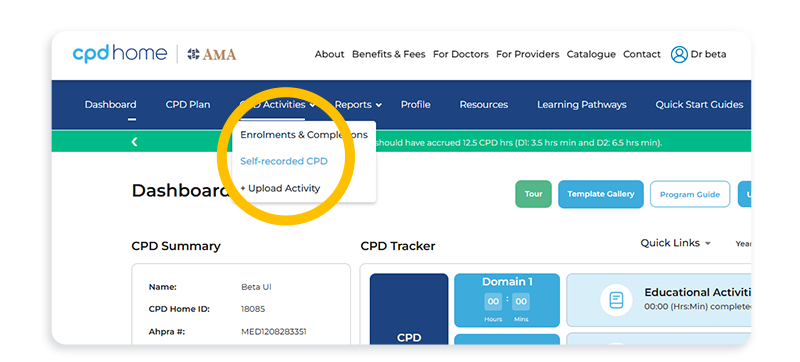
- Select Self-recorded CPD from the drop-down list.
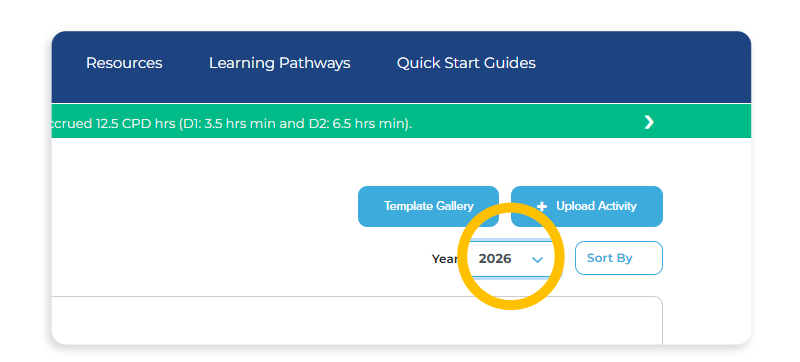
- Select the year when the activity was completed then check the list.
- You are looking for a little paperclip icon to show that supporting evidence has been uploaded to each activity.
- A paper clip icon will appear against a completed CPD activity WITH supporting evidence with the Edit button underneath.
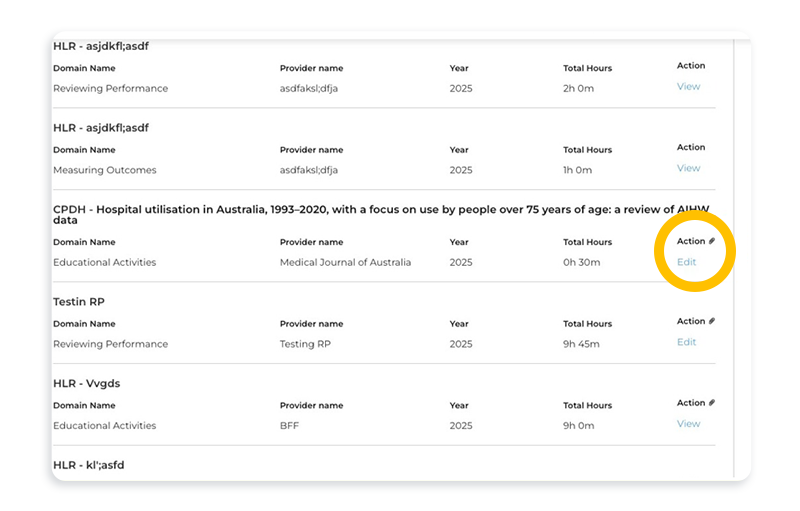
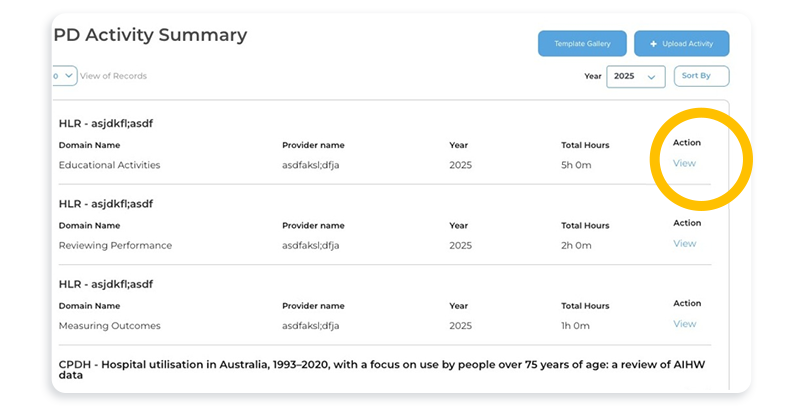
- Go to the activity that is missing the paperclip icon and says View. This activity is missing supporting evidence.

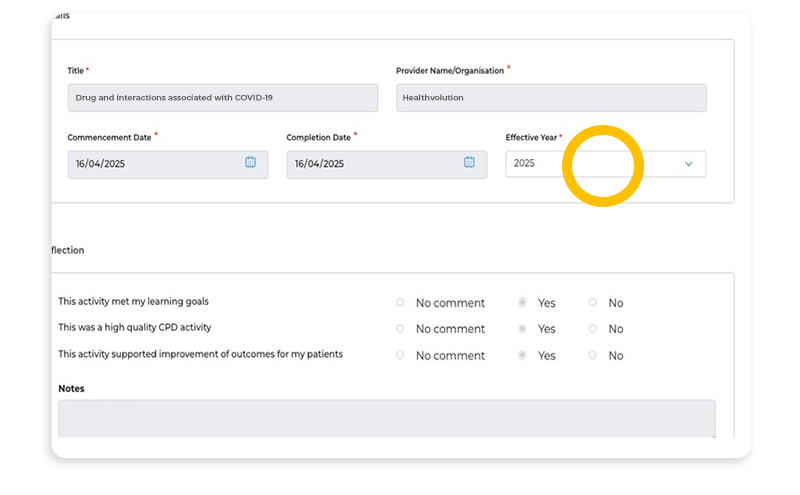
- Have your supported file* ready. This could be a certificate, completed CPD Home log or photo. Click View.

- Click the Effective Year drop down.
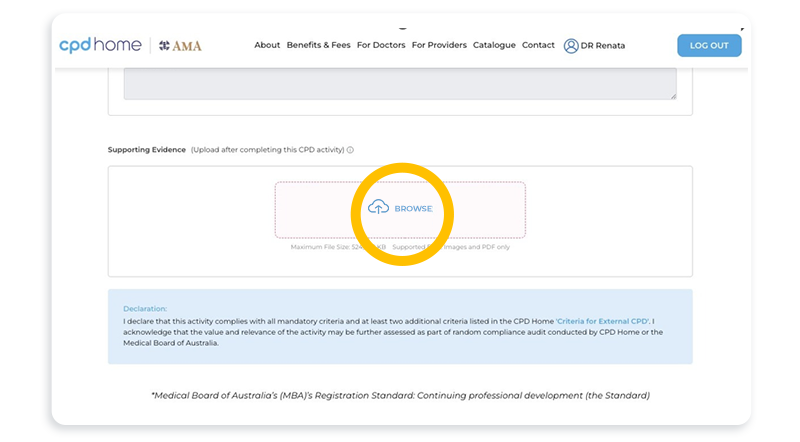
- Drag and drop your file on top of the Browse box or click Browse to find your file*. Choose your file, upload and remember to click Save.
Your self-recorded activity will now display the paper clip icon.
Remember, you can Edit or upload additional supporting evidence to your CPD activity until 31 March of the following CPD year.
* Maximum File Size: 2 MB. Supported Files: Images and PDF only.